
How to Access Your BCOM Work Email
BCOM staff can access their work email through the Microsoft Outlook app or from a web browser.
Your email address is your BCOM username followed by:
@hcnetwork.org
Example: If your username is jsmith, your email address is jsmith@hcnetwork.org.
Before signing in, make sure you have:
- Your complete BCOM work email address
- Your current network password
- Access to your phone or other authentication method
Option 1: Use the Microsoft Outlook App

You can download Microsoft Outlook on an iPhone, iPad, or Android device.
On an iPhone or iPad
- Open the Apple App Store.
- Search for Microsoft Outlook.
- Download the official app published by Microsoft Corporation.
- Open Outlook and select Add Account or Get Started.
- Enter your complete work email address, such as
username@hcnetwork.org. - Enter your BCOM network password.
- Complete the authentication request when prompted.
- Allow notifications if you want to receive alerts for new work email.
On an Android Device
- Open the Google Play Store.
- Search for Microsoft Outlook.
- Download the official app published by Microsoft Corporation.
- Open Outlook and select Add Account or Get Started.
- Enter your complete work email address, such as
username@hcnetwork.org. - Enter your BCOM network password.
- Complete the authentication request when prompted.
- Allow notifications if you want to receive alerts for new work email.
Option 2: Access Outlook Through a Website
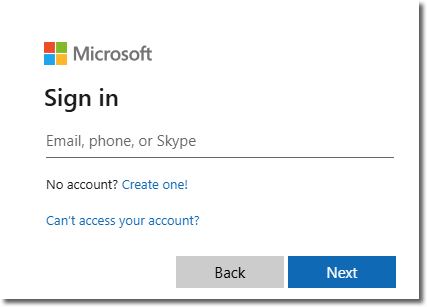
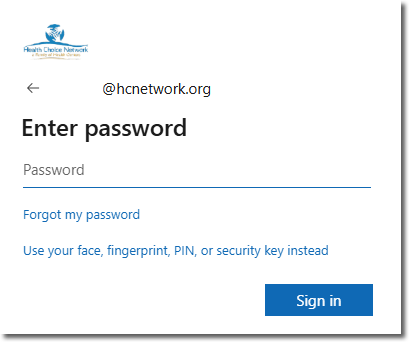
- Open Microsoft Edge, Google Chrome, or another web browser.
- Go to portal.office.com.
- Select Sign in.
- Enter your complete BCOM work email address, such as
username@hcnetwork.org. - Enter your BCOM network password.
- Complete the authentication request when prompted.
- From the Microsoft 365 home page, select Outlook.
You can also go directly to outlook.office.com.
Authentication
For security, Microsoft may ask you to verify your identity when signing in.
- Approve the request only when you initiated the sign-in.
- Follow the instructions shown on your screen or mobile device.
- Never approve an authentication request you did not initiate.
- Report unexpected authentication requests to the BCOM IT Department.
Important Security Reminders
- Never share your work password with anyone.
- Do not save your password on a shared or public computer.
- Always sign out when using a shared workstation.
- Only download the official Microsoft Outlook app.
- Report suspicious messages, login alerts, or unexpected authentication requests to IT.
Need Help?
Contact the BCOM Health Information Technology Department if:
- Your password is not accepted
- You cannot complete the authentication process
- Outlook displays an error
- Your email account does not appear after signing in
